Fix for Logitech G Keys Not working in Windows 10 & Logitech Gaming Software
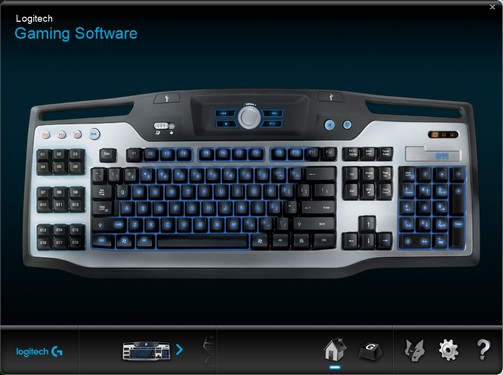 I have an older Logitech G11 keyboard plus a G13 Advanced Gameboard, and actually rely on the macros/shortcuts assigned to the G-Keys daily. Recently they all of a sudden stopped working, and it was a real pain to try and work around it, so I decided to try and solve the problem. The problem seemed to manifest itself after Windows 10 (with Creative Update) froze the other day and I had to restart without a proper shutdown.
Looking around the web for solutions, I tried the common ones:
I have an older Logitech G11 keyboard plus a G13 Advanced Gameboard, and actually rely on the macros/shortcuts assigned to the G-Keys daily. Recently they all of a sudden stopped working, and it was a real pain to try and work around it, so I decided to try and solve the problem. The problem seemed to manifest itself after Windows 10 (with Creative Update) froze the other day and I had to restart without a proper shutdown.
Looking around the web for solutions, I tried the common ones:
- Unplug/re-plug the USB keyboard & gamepad
- Update to the latest Logitech Gaming Software (LGS), which I did to 8.94.108
- unload background software
- unplug other USB devices
- check to make sure the right profile is loaded in LGS
I even tried assigning commands to a different profile where the G-Keys did not have any explicit assignment yet, and still it did not work. I also tried reloading the profile- no luck either.
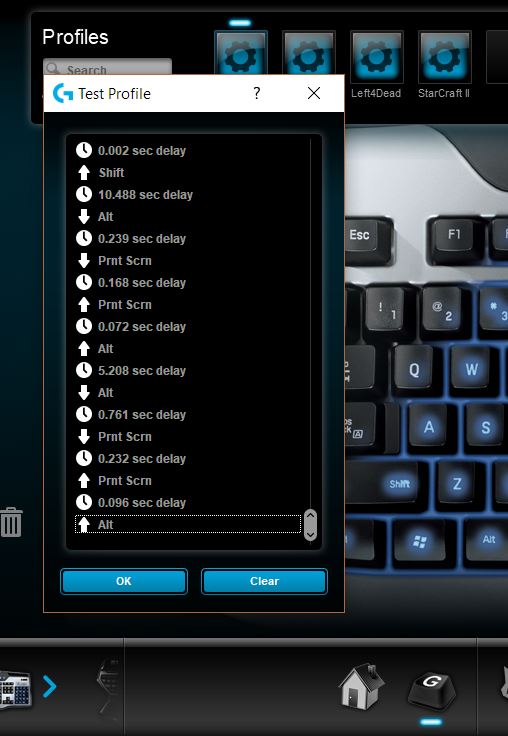
I then noticed that for each profile, there was a "test profile" option, and the maddening thing was that the G-Keys would work inside that Test Profile window. So that meant, to me, it must be some sort of setting with LGS as it had no problem registering those keys inside the Test Profile window.
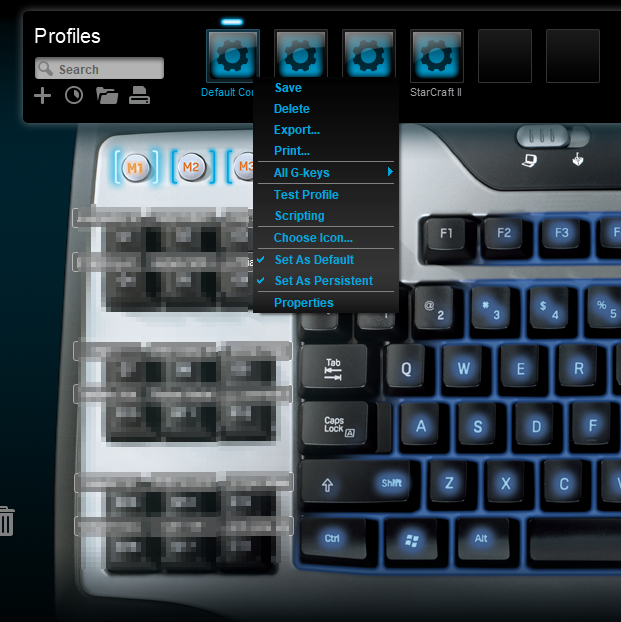
So I did the drop-down on the "Default Profile" again and noticed that there were 2 interesting options: Set as Default and Set as Persistent. I switched both on and voila, the G-Keys started working again.
I hope this will help any of you out there with the same problem!