Articles: Script to Auto Unmount/Remove Mapped Network Drives in Windows 8.1
Posted by: david on 02/14/2014 - 02:39 PM
I use a backup software (Synology Data Replicator) on my Windows 8.1 PC that creates a pair of mapped network drives when it begins backing up to my network attached storage (NAS). Unfortunately those mounted drives persist after the NAS shuts down, and when I save files in various different programs using "Save As", there would be lot of "hang time", even up to half a minute, before I can actually save the file. The reason is because Windows is somehow querying those networked mappings and the operation was timing out. I confirmed this because once I right-clicked on the drives and selected "disconnect", the problem goes away.
So I wanted a solution that would, at specific time of the day, automatically remove all network mappings. That would involve a simple script/batch file, and then having it run using the built-in Windows Scheduled Tasks feature.
The command prompt command to disconnect all networked drives is simple enough:
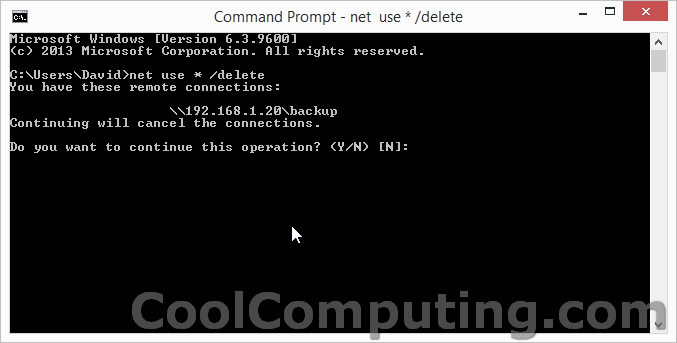
But the problem was that it would prompt "Do you want to continue this operation? (Y/N) [N]:". See the screen shot below.
Apparently, however, you can add a /Y to by pass that prompt, pre-indicating a "Yes" to the NET USE command.
So I created a file called "disconnect-mapped-drives.bat" under the C:\ drive with the contents of:
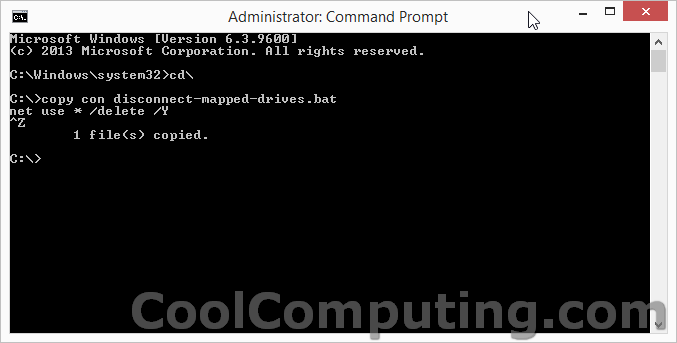
See the screen shot below- note that if you want to save it under C:\ like me, you have to run Command Prompt as an Administrator (SHIFT Right-click on the icon, pick Run as administrator). It's a one-line script, and easy to do using the old-school "copy con" command, the F6 (or CTRL-Z) to save the file.
Next, it involves scheduling the task using Task Scheduler, which I described in a previous post showing you how to automatically delete files aged certain days in Windows.
For me, I scheduled it to run an hour after my NAS turns off automatically daily. Hope this helps any have you having lags/hang-ups/hourglass waits when you are trying to do a "Save as" in Windows. This fix should work for not just Windows 8, but also Vista & XP. And if you found it helpful, please share/like this solution- appreciate it!
So I wanted a solution that would, at specific time of the day, automatically remove all network mappings. That would involve a simple script/batch file, and then having it run using the built-in Windows Scheduled Tasks feature.
The command prompt command to disconnect all networked drives is simple enough:
net use * /delete
But the problem was that it would prompt "Do you want to continue this operation? (Y/N) [N]:". See the screen shot below.
Apparently, however, you can add a /Y to by pass that prompt, pre-indicating a "Yes" to the NET USE command.
So I created a file called "disconnect-mapped-drives.bat" under the C:\ drive with the contents of:
net use * /delete /YSee the screen shot below- note that if you want to save it under C:\ like me, you have to run Command Prompt as an Administrator (SHIFT Right-click on the icon, pick Run as administrator). It's a one-line script, and easy to do using the old-school "copy con" command, the F6 (or CTRL-Z) to save the file.
Next, it involves scheduling the task using Task Scheduler, which I described in a previous post showing you how to automatically delete files aged certain days in Windows.
For me, I scheduled it to run an hour after my NAS turns off automatically daily. Hope this helps any have you having lags/hang-ups/hourglass waits when you are trying to do a "Save as" in Windows. This fix should work for not just Windows 8, but also Vista & XP. And if you found it helpful, please share/like this solution- appreciate it!