Tomato/EasyTomato Router High CPU When Downloading 100Mbps+ Fix
Posted by: david on 07/20/2015 - 04:03 PM
I have an ASUS NT-16 Router which has EasyTomato 0.8 (the newest version) installed. EasyTomato is pretty much an easier-to-use, enhanced version of the popular Tomato/TomatoUSB router firmware. It works well for the most part, but I have noticed that if there are high-speed broadband downloads that are near or exceeding 100 Mbps for several minutes, I could no longer browse the web. It has been an annoyance for months so I decided to really investigate and then hopefully find a solution.

I noticed that firstly the error message I get when browsing the web all stem from "server not found" resulting from the names of the sites not being resolved. Basically, there was a problem with DNS, which the router was configured to "pass through". I had configured the router to route route DNS queries asked for it to the proper servers, such as the Google public DNS ones like 8.8.8.8. When I tried to log into the router configuration to see what what was going one, the hourglass would just keep on spinning with no response, despite the downloads still happily churning along at high-speeds. Once in a while, I am able to get in, and I notice that the CPU load is over 90%.
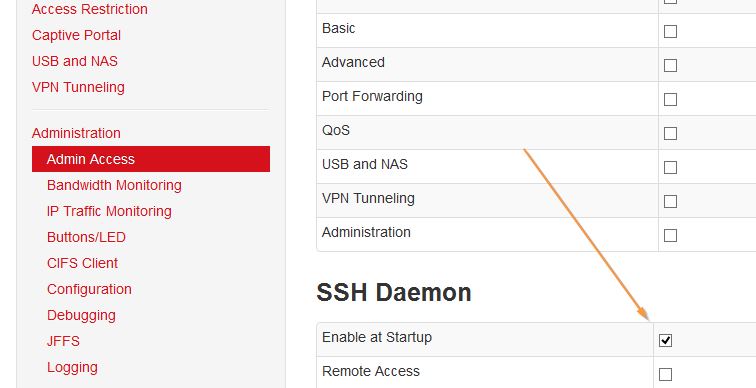
With no heavy-duty downloads occurring, I decided to turn on the SSH server on my Tomato router so I can get into the system via Putty (an excellent free SSH program for Windows). The IP of my router is 192.168.1.1, and I was able to ssh into it using the username of "root" with a password that matches the web interface.
Once inside, I typed top and pressed ENTER. Top is a Linux/UNIX command that shows you which processes are taking up the most CPU, kind of a text-based version of Window's Task Manager. You can enter capital letter P to sort by % of CPU usage. I then started up the download tasks that would normally "flood" the router, and this was the out of "top" during the heavy download session:
It looked like the command dnsmasq was all of a sudden taking a lot of processing power. Apparently that is the "service" that forwards DNS queries sent to the router to the external name servers and then return the resolved names to the clients connected to the router.
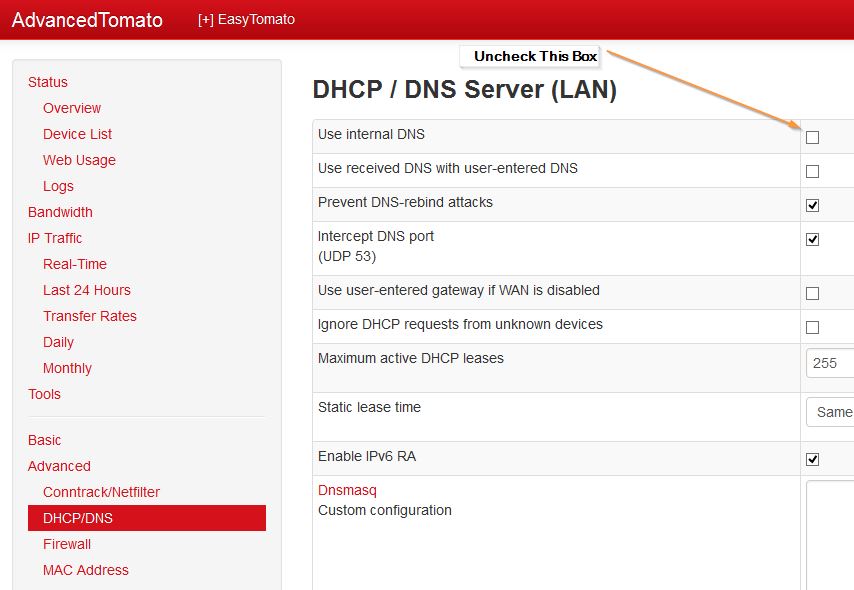
That seemed to be the culprit, so in the web interface, I navigated to Advanced, then to the DHCP/DNS section, and UNCHECKED the box that says Use Internal DNS. After testing over a course of several days, I discovered no more dropped web browsing sessions. The only other things I had to configure were to alter the DNS settings for a few non-DHCP clients (devices that do not fetch an IP automatically from the router) that had "192.168.1.1" as their DNS server. Since I'm no longer utilizing the router for that purpose, those devices needed to point to the external DNS servers directly.
This simple solution worked for me, and I hope it does for you as well. If it does not please leave a comment with your findings and I will be happy to look into this problem so more.
I noticed that firstly the error message I get when browsing the web all stem from "server not found" resulting from the names of the sites not being resolved. Basically, there was a problem with DNS, which the router was configured to "pass through". I had configured the router to route route DNS queries asked for it to the proper servers, such as the Google public DNS ones like 8.8.8.8. When I tried to log into the router configuration to see what what was going one, the hourglass would just keep on spinning with no response, despite the downloads still happily churning along at high-speeds. Once in a while, I am able to get in, and I notice that the CPU load is over 90%.
With no heavy-duty downloads occurring, I decided to turn on the SSH server on my Tomato router so I can get into the system via Putty (an excellent free SSH program for Windows). The IP of my router is 192.168.1.1, and I was able to ssh into it using the username of "root" with a password that matches the web interface.
Once inside, I typed top and pressed ENTER. Top is a Linux/UNIX command that shows you which processes are taking up the most CPU, kind of a text-based version of Window's Task Manager. You can enter capital letter P to sort by % of CPU usage. I then started up the download tasks that would normally "flood" the router, and this was the out of "top" during the heavy download session:
Mem: 25584K used, 101400K free, 0K shrd, 3200K buff, 9364K cached


CPU:   1% usr   2% sys   0% nic   3% idle   0% io   1% irq  90% sirq


Load average: 1.31 0.59 0.61 4/31 5539


PID  PPID USER     STAT   VSZ %VSZ %CPU COMMAND


5446     1 nobody   S     1072   1%  25% dnsmasq -c 1500 --log-async


2249  2245 root     R     1564   1%  17% top -d1


5425  2704 root     R     1564   1%   7% top


322     1 root     S     1232   1%   2% buttons


922     1 root     S     2632   2%   1% httpd


3     2 root     SW


2703  2681 root     S     1120   1%   0% dropbear -p 22 -a


4     2 root     SW


2241   922 root     S     2656   2%   0% httpd


481     1 root     S     1580   1%   0% crond


2704  2703 root     S     1576   1%   0% -sh


928     1 root     S     1572   1%   0% udhcpc -i vlan2 -b -s dhcpc-event -H unknown -m -S


324   323 root     S     1564   1%   0% /bin/sh


2245  2244 root     S     1560   1%   0% {.wxdjAka4} /bin/sh /tmp/.wxdjAka4


2244  2241 root     S     1560   1%   0% sh -c /tmp/.wxdjAka4 2>&1


326     1 root     S     1556   1%   0% syslogd -L -s 500 -b 2


328     1 root     S     1556   1%   0% klogd


1     0 root     S     1248   1%   0% /sbin/init noinitrd


323     1 root     S     1200   1%   0% console


2681     1 root     S     1056   1%   0% dropbear -p 22 -a


490     1 root     S      980   1%   0% cstats


483     1 root     S      888   1%   0% rstats


281     1 root     S      608   0%   0% hotplug2 --persistent --no-coldplug


89     2 root     SW


45     2 root     SW       0   0%   0% [pdflush]


44     2 root     SW       0   0%   0% [pdflush]


5     2 root     SW


18     2 root     SW


2     0 root     SW


46     2 root     SW


47     2 root     SW
It looked like the command dnsmasq was all of a sudden taking a lot of processing power. Apparently that is the "service" that forwards DNS queries sent to the router to the external name servers and then return the resolved names to the clients connected to the router.
That seemed to be the culprit, so in the web interface, I navigated to Advanced, then to the DHCP/DNS section, and UNCHECKED the box that says Use Internal DNS. After testing over a course of several days, I discovered no more dropped web browsing sessions. The only other things I had to configure were to alter the DNS settings for a few non-DHCP clients (devices that do not fetch an IP automatically from the router) that had "192.168.1.1" as their DNS server. Since I'm no longer utilizing the router for that purpose, those devices needed to point to the external DNS servers directly.
This simple solution worked for me, and I hope it does for you as well. If it does not please leave a comment with your findings and I will be happy to look into this problem so more.